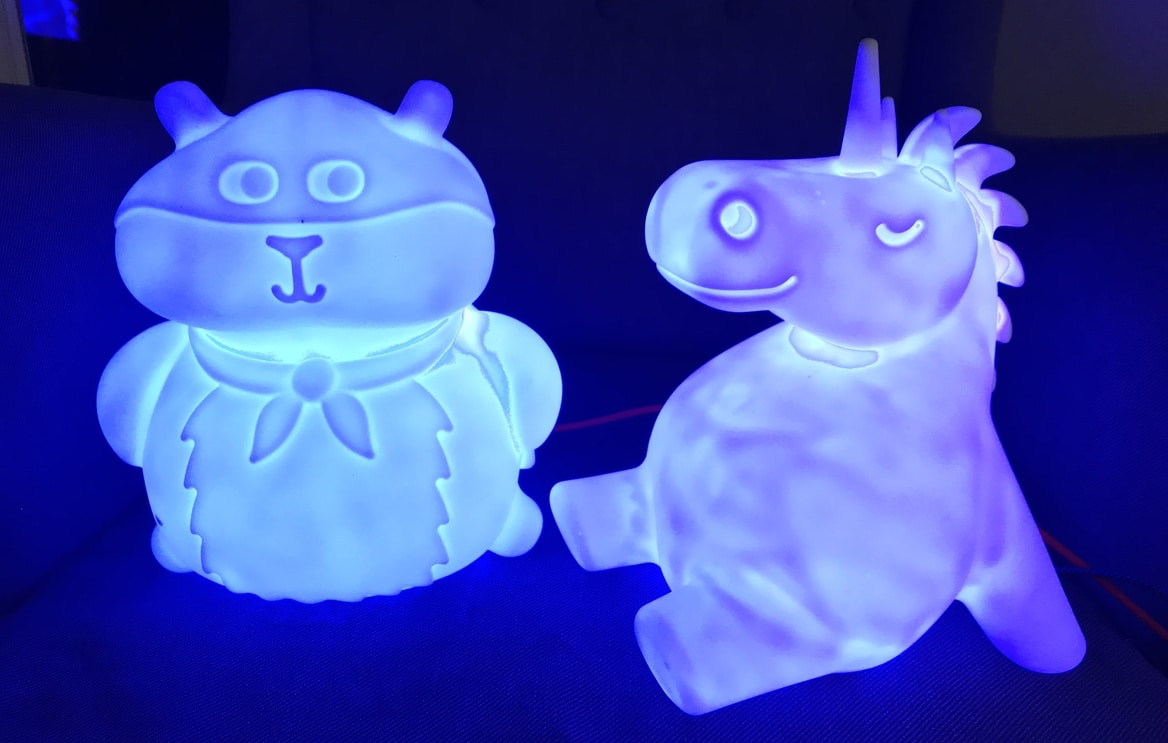
Update 2022 — Don't follow this guide!
This post is extremely old and really doesn't have a place in the modern world, as we now have an awesome piece of software that includes awesome light effects, multi-device syncing AND scheduling, all over wifi and all on an ESP8266 with no Raspberry Pi needed!
Go check out the WLED project and save yourself all of this bother!
Original post follows
A couple of years ago I made my oldest kid a nightlight for his bedroom. It was a simple project using a Raspberry Pi Zero, a Pimoroni Unicorn HAT and some code in Python. I set it up to change colours at specific times of day to help him know when it was bed time and what time it was ok to get out of bed in the mornings.
The main downside is cost. A Raspberry Pi Zero WH will set you back around £15, the Unicorn Phat is £10 and you're looking at another £7 for an SD card. Finally, the official Pi Foundation power supply is £8. This comes to a total of about £40.
Scaling up and reducing costs
In recent years I've had a couple more kids and more kids means more night lights. Making three lights using the old method would cost a small fortune so I decided to figure out a more scalable solution that would cost significantly less.
Materials
- Raspberry Pi 3B+ with an always on network connection
- Cheap ESP8266 from Aliexpress (£2)
- WS2812B LED Strip, 60 LEDs per meter (£3)
- USB Charger and Micro USB Cable (£2)
- Enclosure – whatever you like!
Here's the plan: I have a Pi 3B+ in my office that's always on. I will use that to gather the time and beam it to the lamps wirelessly. The lamps themselves will be controlled with the amazingly cheap ESP8266 (Arduino IDE compatible, WiFi-enabled microcontroller!).
For lights, I bought WS2812B RGB LED strips — a 1 meter strip includes 60 LEDs. 15 LEDs supplies more than enough light for our needs, so that's 4 lamps from one strip! All in, you can build each lamp for less than £5!
Building the lights
Time for some soldering! Trim the LED strips into appropriate lengths (15 works well), cutting along the cut marks and solder on some stiff hookup wire making sure to attach them to the data-in side of the strip. Attach the positive wire to the 5v pin on the ESP8266, the ground to ground and the data pin to D3.
I then gently loop over the strip and hot-glue it to itself to create a "bulb" of sorts. I also add a little hot glue around the wires for strain relief.
Initially I was using strips of 25 LEDs per lamp but I found the power draw was often too much for the ESP8266 and was causing random dropouts on the wifi connection so I reduced the number down to 16.
The Raspberry Pi
Get a Raspberry Pi up and running with the latest version of Raspbian and install Flask using PIP.
The code fires up a simple web server using the Flask library, gets the time, converts it into a decimal for easy handling (e.g. 07:30 becomes 7.5), uses some simple logic to define the colours and brightness, and concatenates them into a simple string output as plain text.
In your home directory, create a file called app.py and add the following code:
from flask import Flask, request
import datetime

app = Flask(__name__)

@app.route('/')
def index():

    # get the time
    a = datetime.datetime.now().time()

    # convert time to a float
    mytime = a.hour + a.minute / 60.0

    # default to off
    color = "0,0,0,0"

    if(mytime > 7):
        r = 0
        g = 255
        b = 0
        a = 255

    if(mytime > 9):
        r = 255
        g = 255
        b = 255
        a = 255

    color = str(r) + "," + str(g) + "," + str(b) + "," + str(a)

    return color

if __name__ == '__main__':
    app.run(debug=True, host='0.0.0.0', port=999)
This starts off with all LEDs off, turns green at 7am and white at 9am. You can add additional logic for more steps (e.g. simulating a sunrise with red fading through orange to yellow to white).
Fire up the web server with sudo python app.py, then visit http://mypi.local:999 in your browser — the output should look like 255,0,0,255.
Stop the server with ctrl+c, then set it to auto-start on boot:
crontab -eAdd this line at the bottom:
@reboot /home/pi/app.pyReboot with sudo reboot and test the URL again before moving on.
The ESP8266
The ESP8266 connects to the network, performs an HTTP GET request to the web page, expects four comma-separated values (R, G, B, brightness), and pushes them to the LED strip via the FastLED library every 60 seconds.
Copy this code into the Arduino IDE, modify the constants at the top (WiFi credentials, server URL), install the FastLED and ESP8266 libraries, then compile and upload:
#include <FastLED.h>
#include <ESP8266WiFi.h>
#include <ESP8266HTTPClient.h>

FASTLED_USING_NAMESPACE

#define DATA_PIN 3
#define LED_TYPE WS2812
#define COLOR_ORDER GRB
#define NUM_LEDS 15
#define WIFI_SSID "your wifi network name here!"
#define WIFI_PWD "Your wifi password"
#define HOST_NAME "NightLight01"
#define DATA_SRC "URL for the location of your little API"
#define BRIGHTNESS 90
#define FRAMES_PER_SECOND 120

CRGB leds[NUM_LEDS];

// function to explode strings
String getValue(String data, char separator, int index) {
  int found = 0;
  int strIndex[] = {0, -1};
  int maxIndex = data.length()-1;
  for(int i=0; i<=maxIndex && found<=index; i++){
    if(data.charAt(i)==separator || i==maxIndex){
      found++;
      strIndex[0] = strIndex[1]+1;
      strIndex[1] = (i == maxIndex) ? i+1 : i;
    }
  }
  return found>index ? data.substring(strIndex[0], strIndex[1]) : "";
}

void setup() {
  Serial.begin(230400);
  FastLED.addLeds<LED_TYPE,DATA_PIN,COLOR_ORDER>(leds, NUM_LEDS).setCorrection(TypicalLEDStrip);
  FastLED.setBrightness(BRIGHTNESS);
  WiFi.begin(WIFI_SSID, WIFI_PWD);
  WiFi.hostname(HOST_NAME);
  while (WiFi.status() != WL_CONNECTED) {
    delay(100);
    Serial.println("Connecting.");
  }
}

void loop() {
  delay(1000);
  if (WiFi.status() == WL_CONNECTED) {
    HTTPClient http;
    http.begin(DATA_SRC);
    int httpCode = http.GET();
    if (httpCode > 0) {
      String payload = http.getString();
      int r = getValue(payload, ',', 0).toInt();
      int g = getValue(payload, ',', 1).toInt();
      int b = getValue(payload, ',', 2).toInt();
      int a = getValue(payload, ',', 3).toInt();
      FastLED.setBrightness(a);
      for (int i=0; i <= NUM_LEDS; i++) {
        leds[i].setRGB(r,g,b);
      }
      FastLED.show();
    }
    http.end();
  }
  delay(1000*60);
}
If all went to plan, you should now have a networked nightlight up and running that changes colour depending on the time of day. Your Python script can decide colours in all kinds of ways — randomly generate them, set them based on the weather, or pull from a public API like Cheerlights and let Twitter decide the colour of your lights!
Thanks for taking the time to read this. I would love to see what you made — share your projects with me on Twitter (@awarburton).