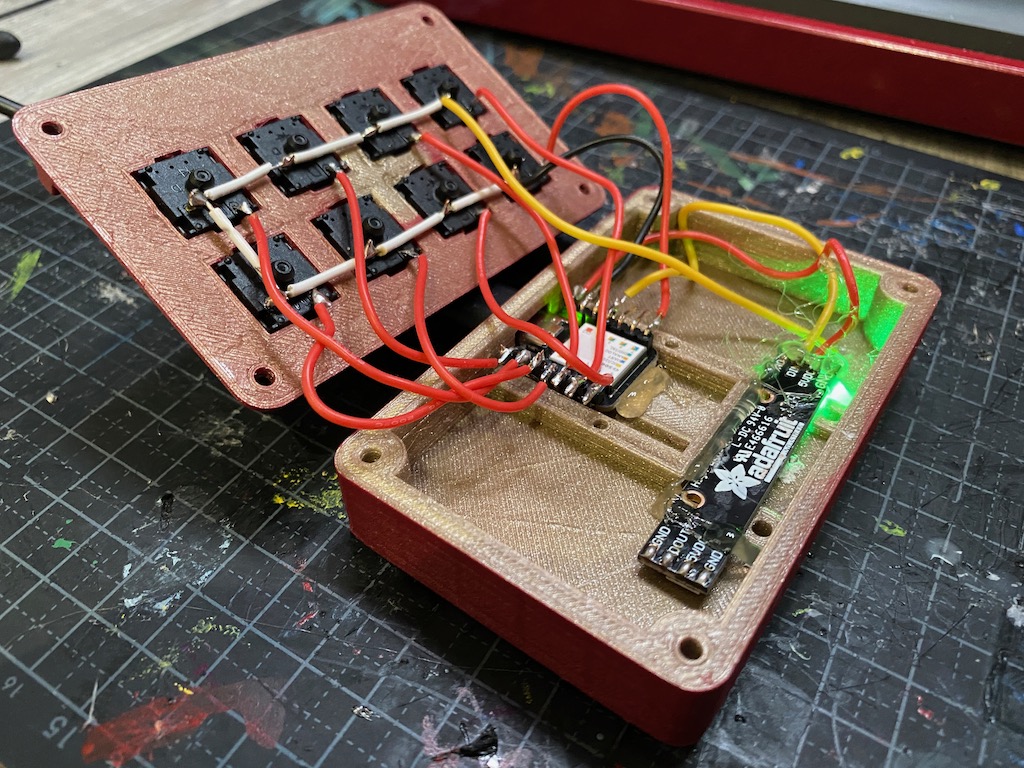
I recently got into Mechanical Keyboards and thought it would be fun to build my own 8 key mechanical macropad. The process is pretty easy and made even easier with the addition of the Seeduino Xiao which is super cheap and has enough inputs to create a decent sized keypad without the complexities of figuring out how to code a matrix (which if you feel like doing you could create a pad of up to 25 keys with this tiny device!). Lets do this!
I'll include the basics, but you can modify this project extensively, using your own switches (I used mechanical keyboard keys but you could use tactile switches, arcade buttons or even a foot pedal if you prefer).
This guide assumes a basic amount of knowledge of electronics. Nothing here is rocket science but you'll need to know how to trim wires, do some basic soldering and edit text documents.
Equipment
- Seeduino Xiao (Official site) — update 2022: Get the Xiao RP2040!
- Enclosure — I used this 3D printed one from Thingiverse but you can use anything from an icecream tub to a high-end, pre-made enclosure
- Keyswitches and Keycaps — I got mine from Aliexpress
- Wire (a combination of solid core and silicon wire)
- Solder, soldering iron
Let's build it!
By default, the Seeeduino Xiao is configured as an Arduino device so you'll need to change it to work with CircuitPython. I've already written a tutorial for that, so instead of me rewriting it, you can just follow that guide and then come back here.
Next, you'll need to download the CircuitPython library bundle. The Xiao has a very limited amount of space so you can only add the exact files you need. Once you've downloaded and extracted the bundle you'll need to find the adafruit_hid directory. From there you only need __init__.mpy, keyboard_layout_us.mpy, keyboard.mpy and keycode.mpy so delete the other files and then copy the directory into the lib folder on your CIRCUITPY drive.
NB: You'll notice in the code below that we also import the time, board, digitalio and usb_hid libraries. These are built in to the device already so you don't need to add them.
Next we're going to add the keyswitches to the case. It generally doesn't matter which way around they go but things are easier if you have them all in the same orientation. Once that's done you need to create a "common ground" wire that runs between one pin of each switch. I did this by taking a single strand of solid core wire and cutting away a short amount of the plastic outer layer exposing the wire beneath and then soldering it to the pins.
Once you've done that, you need to connect your common ground to the ground pin on the Seeduino Xiao. Then connect a short length of silicon wire from the first pin (D0) to the spare pin on the first key, and repeat for all the keys.
The code
Connect the Xiao to your machine via USB-C cable and then copy the code below into a new file. Save it as main.py and copy it to your CIRCUITPY drive. If the code is solid the orange light will flash 5 times on the board and then your macros should work as intended. If not, debug over serial using REPL.
# Import the libraries
import time
import board
from digitalio import DigitalInOut, Direction, Pull
from adafruit_hid.keyboard import Keyboard
from adafruit_hid.keycode import Keycode
from adafruit_hid.keyboard_layout_us import KeyboardLayoutUS
import usb_hid

# define output LED
led = DigitalInOut(board.D13)
led.direction = Direction.OUTPUT

# flash the LED when booting
for x in range(0, 5):
    led.value = False
    time.sleep(0.2)
    led.value = True
    time.sleep(0.2)

# configure device as keyboard
kbd = Keyboard(usb_hid.devices)
layout = KeyboardLayoutUS(kbd)

# define buttons
d0 = DigitalInOut(board.D0)
d0.direction = Direction.INPUT
d0.pull = Pull.UP

d1 = DigitalInOut(board.D1)
d1.direction = Direction.INPUT
d1.pull = Pull.UP

d2 = DigitalInOut(board.D2)
d2.direction = Direction.INPUT
d2.pull = Pull.UP

d3 = DigitalInOut(board.D3)
d3.direction = Direction.INPUT
d3.pull = Pull.UP

d4 = DigitalInOut(board.D4)
d4.direction = Direction.INPUT
d4.pull = Pull.UP

d5 = DigitalInOut(board.D5)
d5.direction = Direction.INPUT
d5.pull = Pull.UP

d6 = DigitalInOut(board.D6)
d6.direction = Direction.INPUT
d6.pull = Pull.UP

d7 = DigitalInOut(board.D7)
d7.direction = Direction.INPUT
d7.pull = Pull.UP

# little function to open apps via spotlight
def open_app(app):
    kbd.send(Keycode.COMMAND, Keycode.SPACE)
    time.sleep(0.2)
    layout.write(app)
    time.sleep(0.2)
    kbd.send(Keycode.ENTER)

# loop forever
while True:

    if not d0.value:
        # open Chrome and go to gmail
        led.value = False
        open_app("Chrome.app")
        time.sleep(0.5)
        kbd.send(Keycode.COMMAND, Keycode.T)
        time.sleep(0.2)
        layout.write('https://mail.google.com')
        time.sleep(0.5)
        kbd.send(Keycode.ENTER)
        time.sleep(0.5)
        led.value = True

    if not d1.value:
        # open finder
        led.value = False
        open_app("~")
        led.value = True
        time.sleep(0.5)

    if not d2.value:
        # open terminal
        led.value = False
        open_app("terminal.app")
        time.sleep(0.5)
        led.value = True

    if not d3.value:
        # open notes
        led.value = False
        open_app("notes.app")
        time.sleep(0.5)
        led.value = True

    if not d4.value:
        # open music
        led.value = False
        open_app("Amazon Music.app")
        time.sleep(0.5)
        led.value = True

    if not d5.value:
        # mute video on bluejeans
        led.value = False
        kbd.send(Keycode.V)
        time.sleep(0.3)
        led.value = True

    if not d6.value:
        led.value = False
        open_app("messages.app")
        time.sleep(0.3)
        led.value = True

    if not d7.value:
        # mute audio on bluejeans
        led.value = False
        kbd.send(Keycode.M)
        time.sleep(0.3)
        led.value = True